Cursor
Cursor can call CompactifAI through the same OpenAI-compatible chat completions API you use elsewhere: set your API key, point the OpenAI client at our base URL, and register the model IDs your account can use.
You need a CompactifAI API key and the model id for each model you plan to use (for example carina-60b or glm-5-2).
1. Open Auto and disable the checkbox
Section titled “1. Open Auto and disable the checkbox”Click the Auto dropdown and turn off the Auto checkbox so you can manage which models are available.
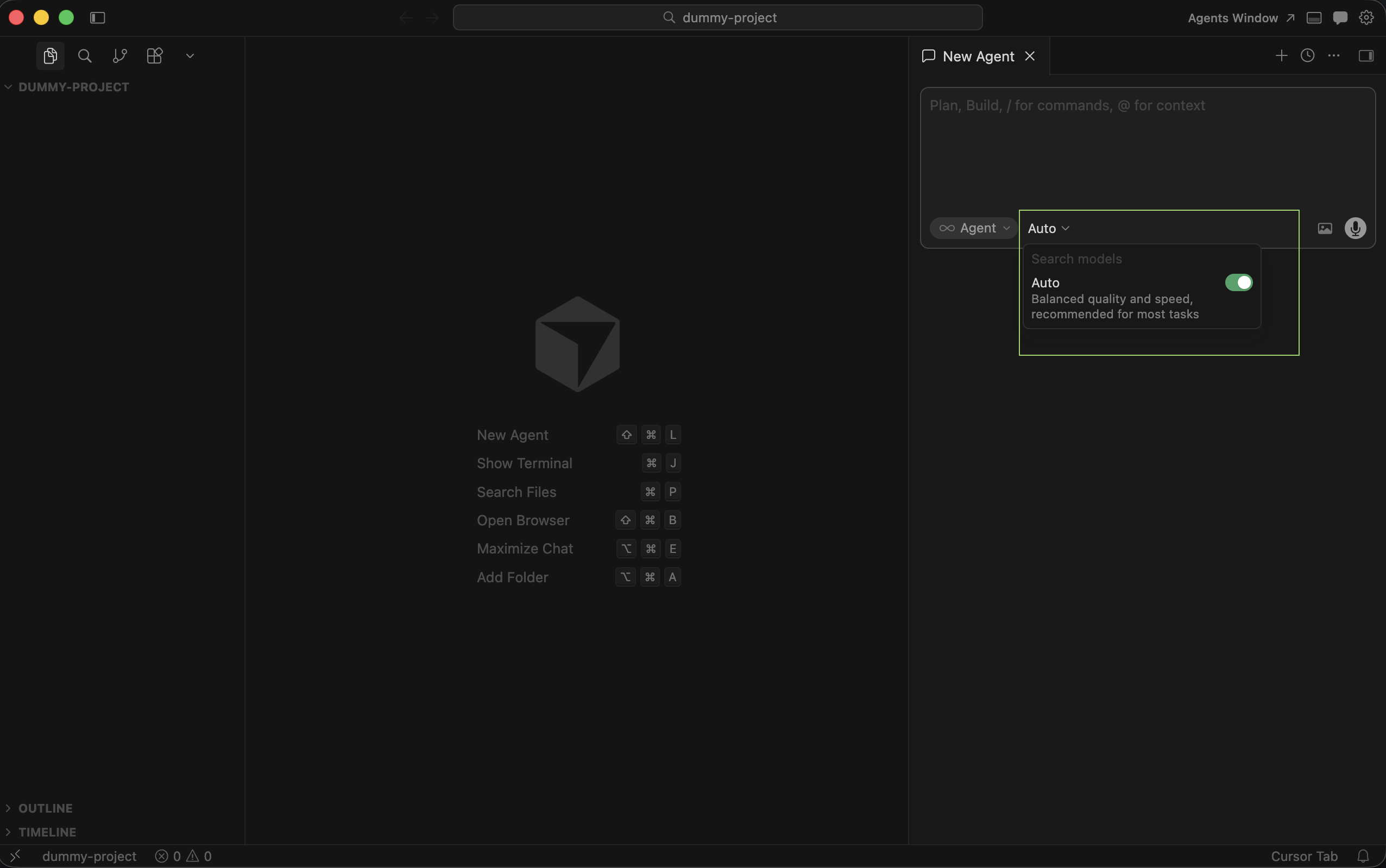
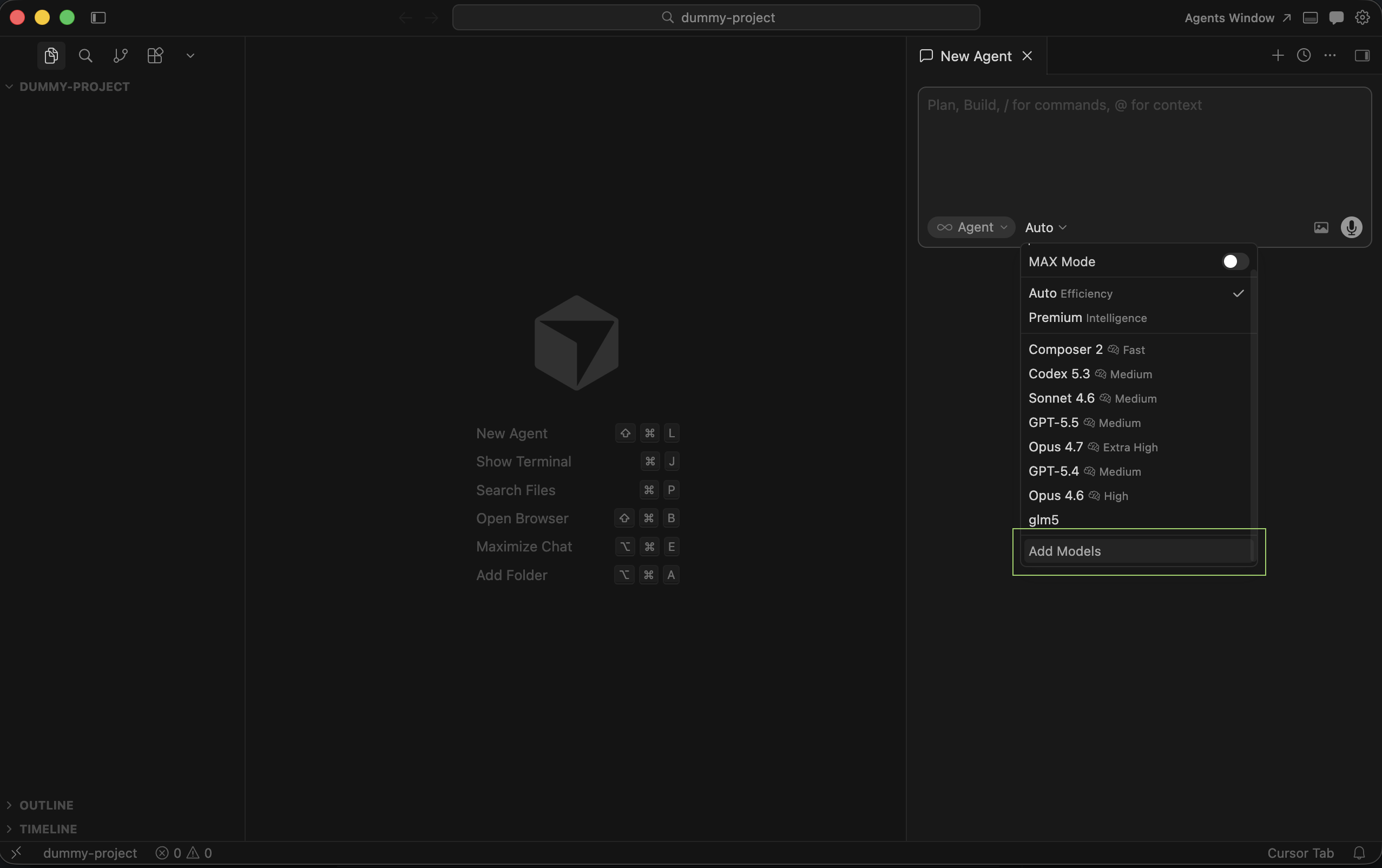
2. Add models
Section titled “2. Add models”Choose Add models to open Cursor Settings tab.
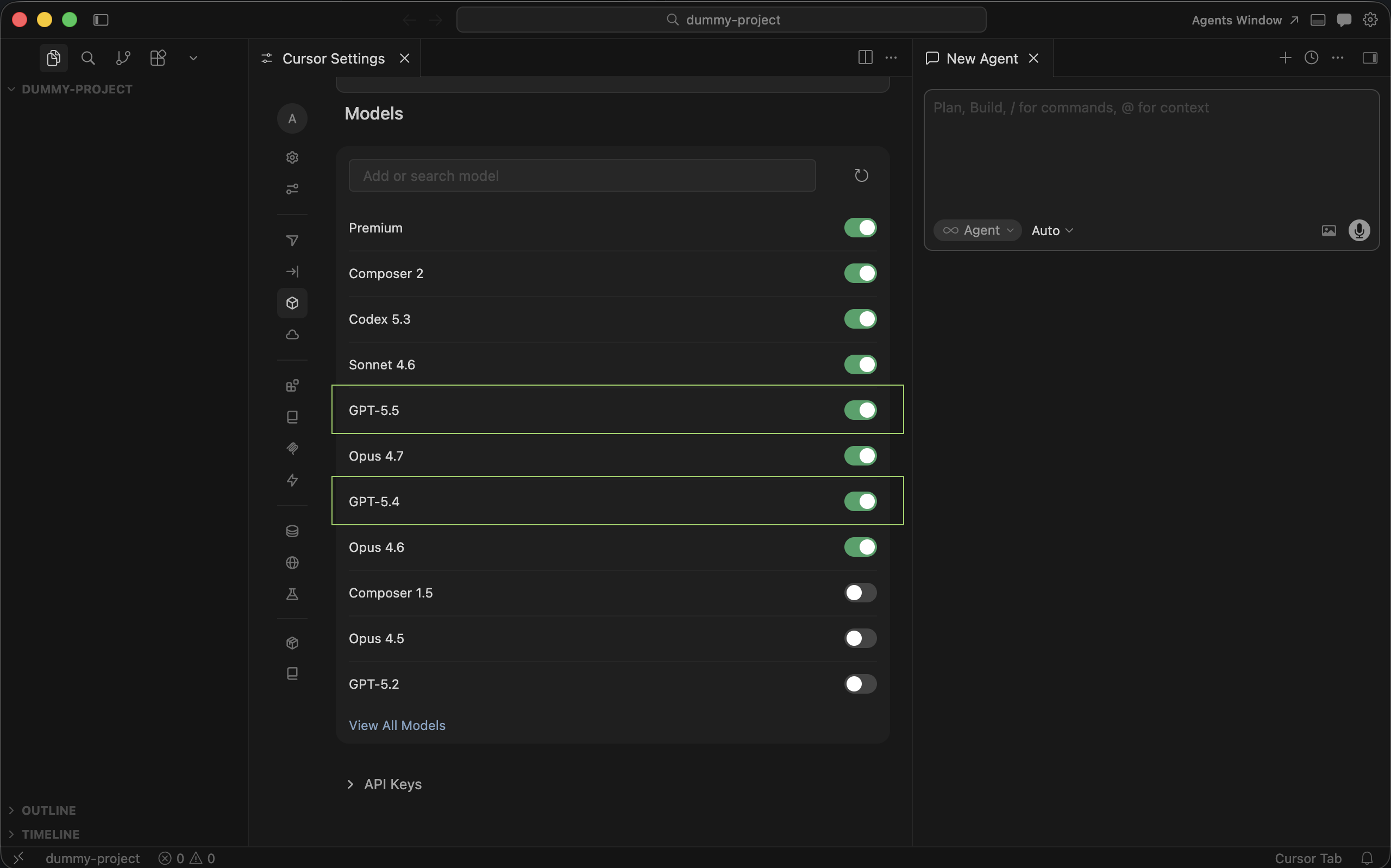
3. Disable GPT models (optional)
Section titled “3. Disable GPT models (optional)”Turn off the built-in GPT models if you want Cursor to rely on CompactifAI and your custom entries instead.
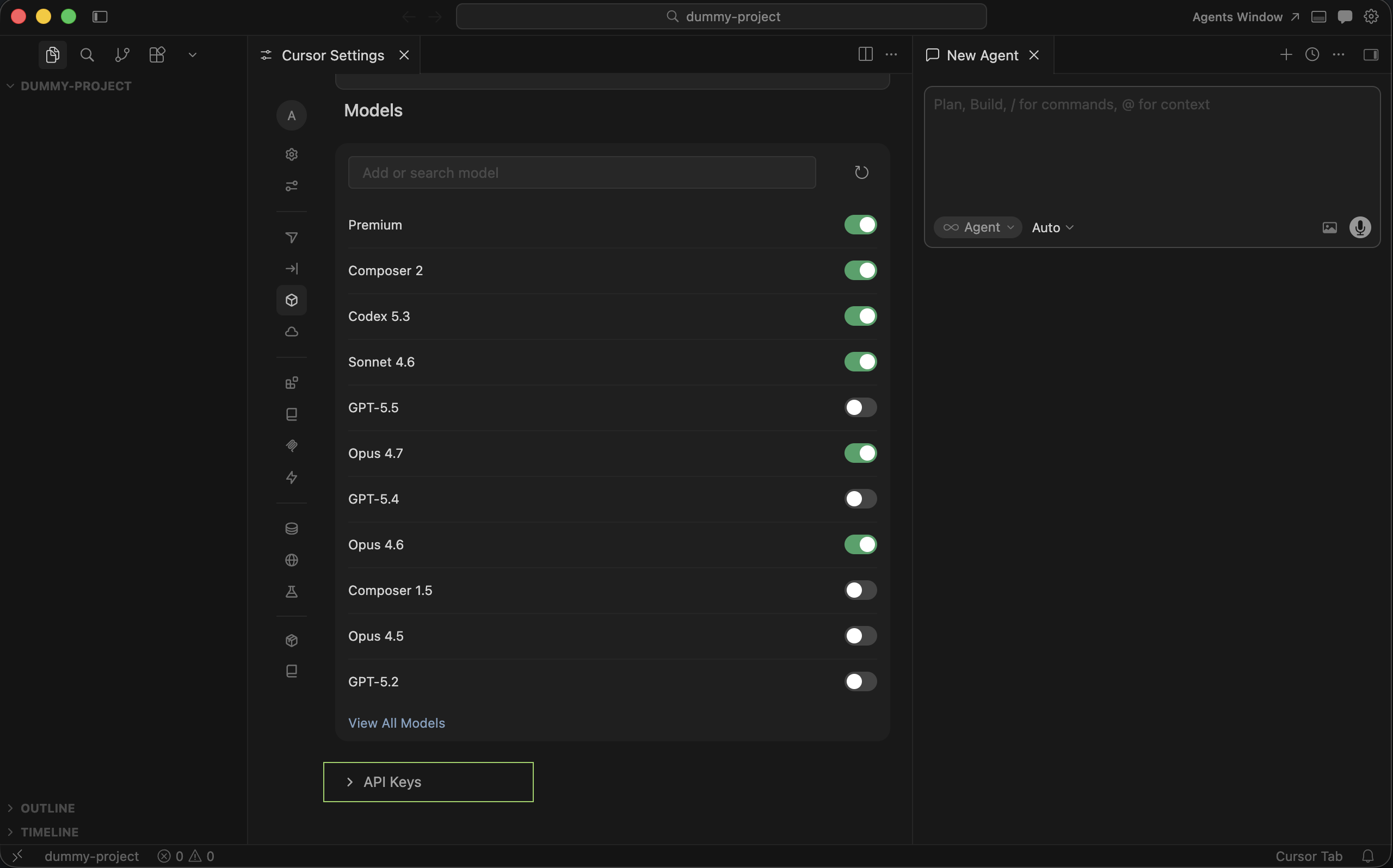
4. Open API Keys
Section titled “4. Open API Keys”Open Cursor settings and go to API Keys.
5. Enable custom OpenAI API key
Section titled “5. Enable custom OpenAI API key”Enable the OpenAI API key section so you can override the default OpenAI key inside Cursor. You can turn this off later; Cursor restores its prior behavior internally. You do not need to keep a backup of the old value.
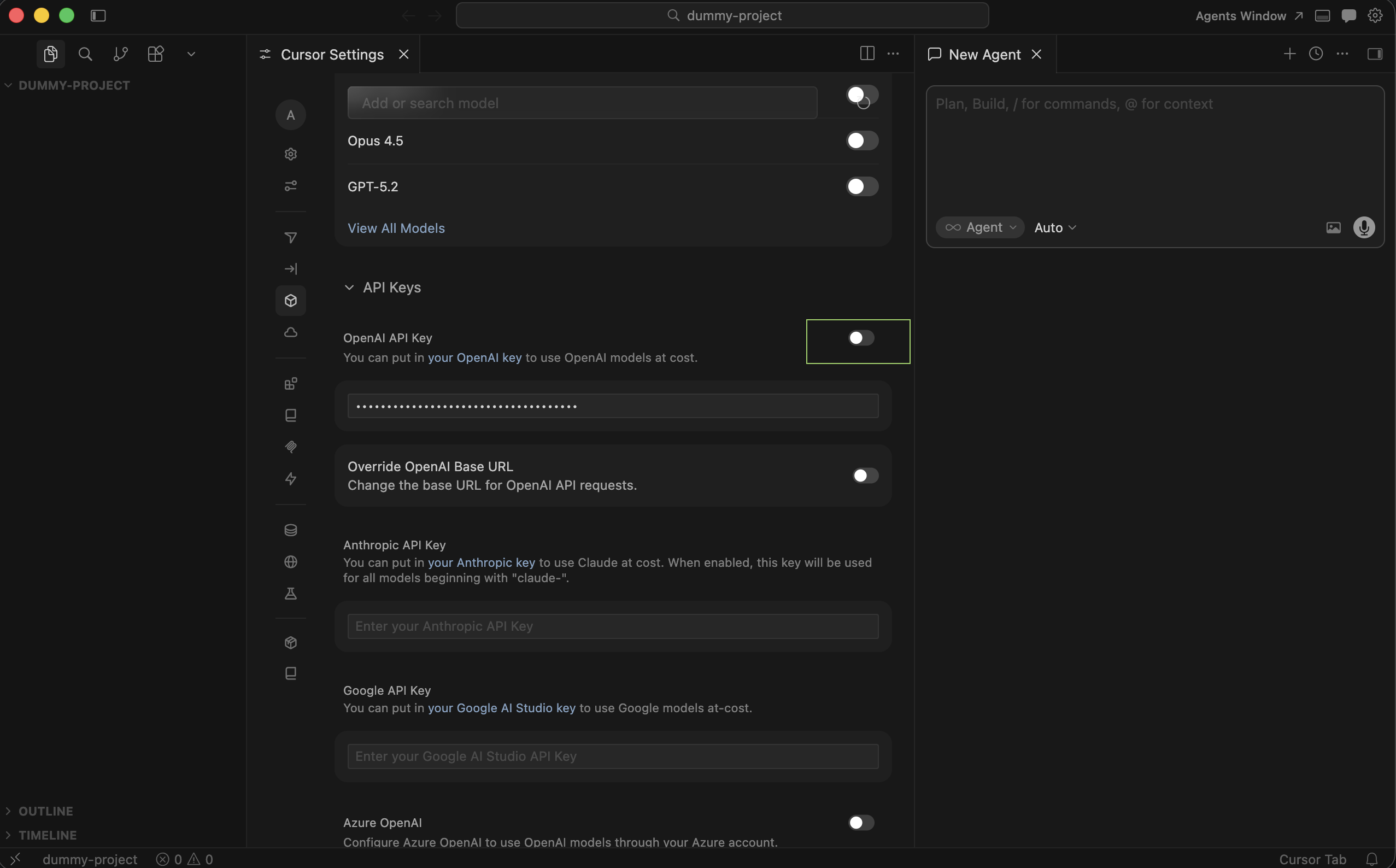
6. Open OpenAI API key configuration
Section titled “6. Open OpenAI API key configuration”Click Enable OpenAI API Key (or the equivalent control) to edit key and endpoint settings.
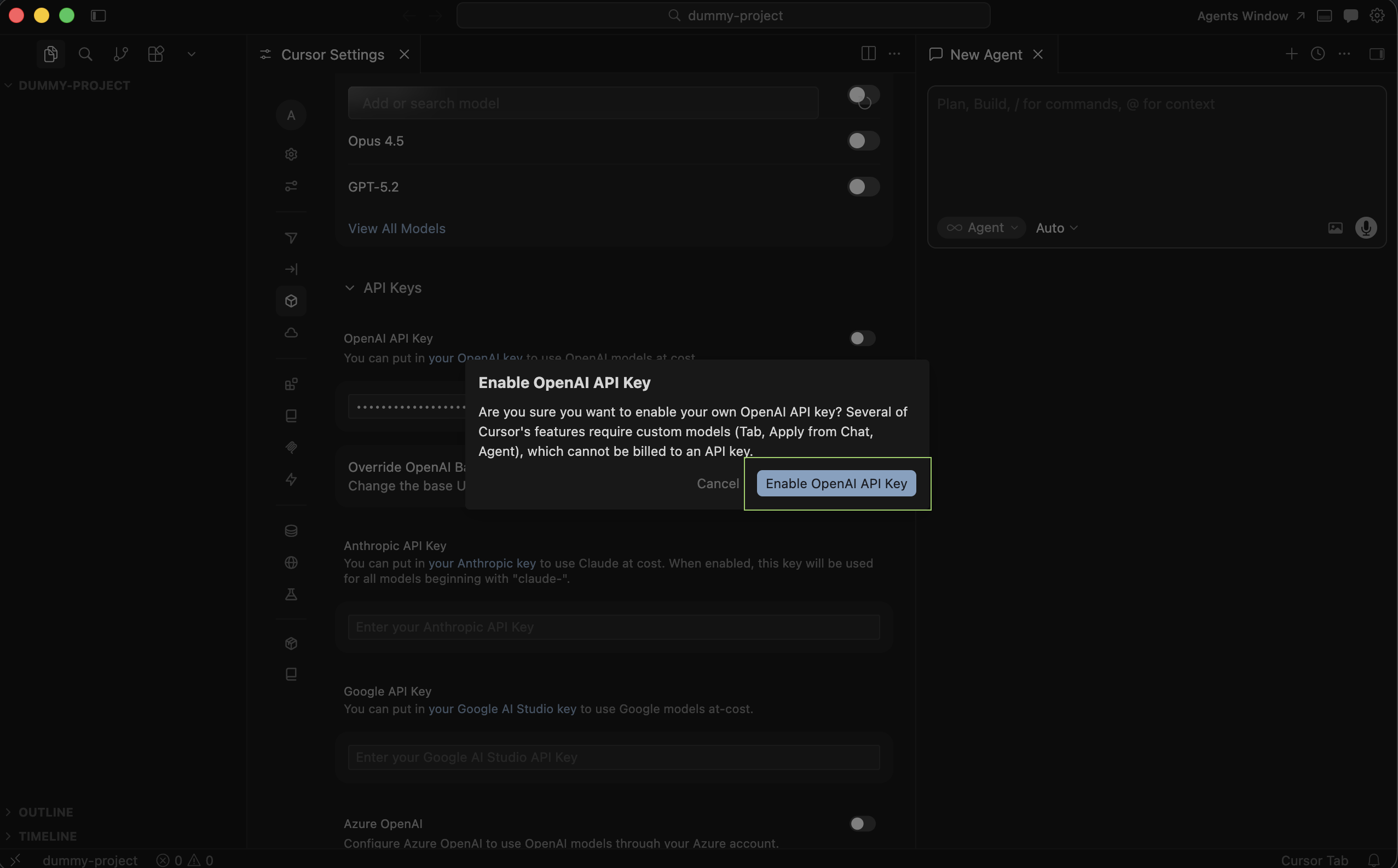
7. CompactifAI key and base URL override
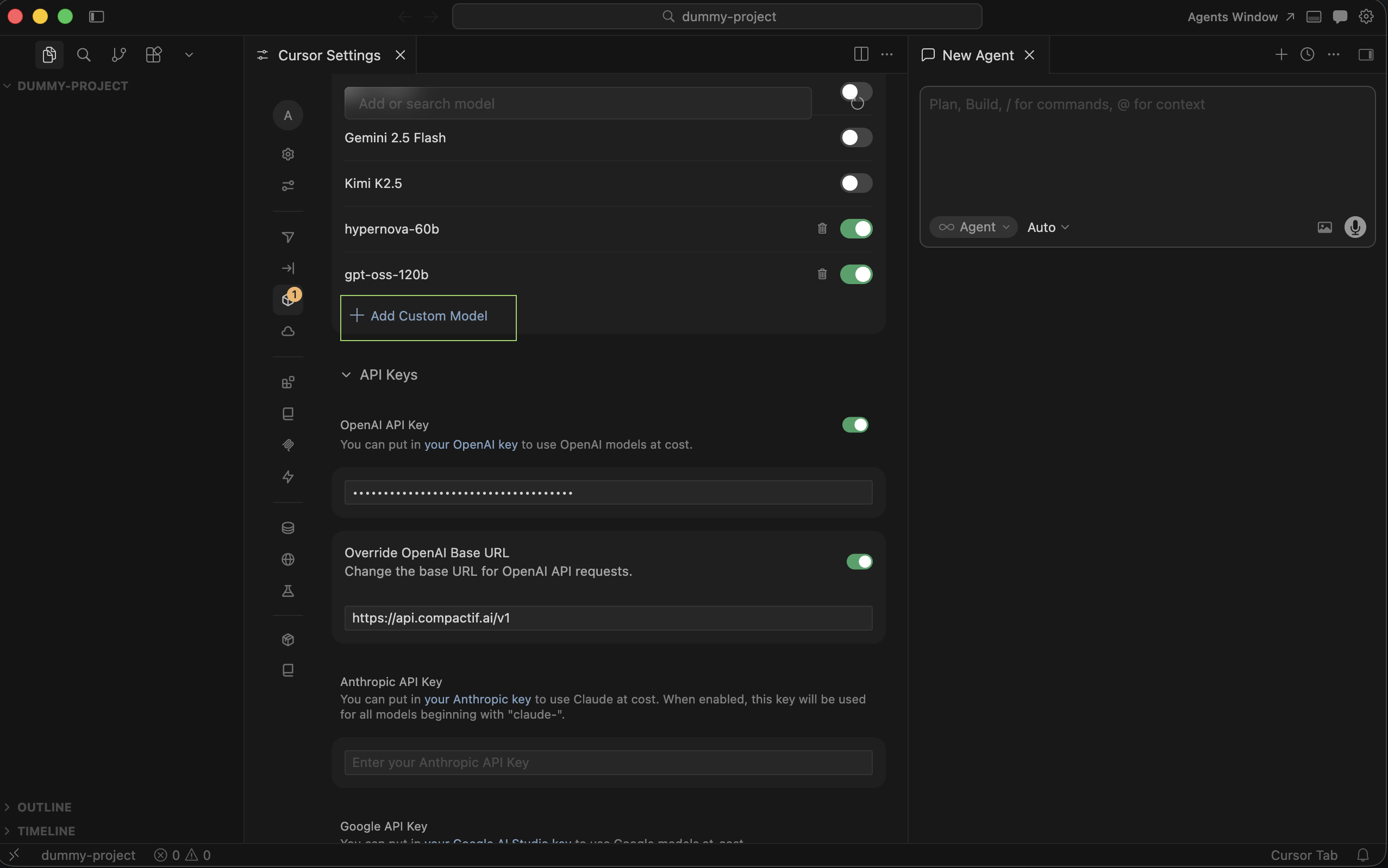
Section titled “7. CompactifAI key and base URL override”Paste your CompactifAI API key where the OpenAI key goes, and enable Override OpenAI Base URL. As with the API key, you do not need to keep a backup. If you turn the override off, Cursor reverts the value internally.
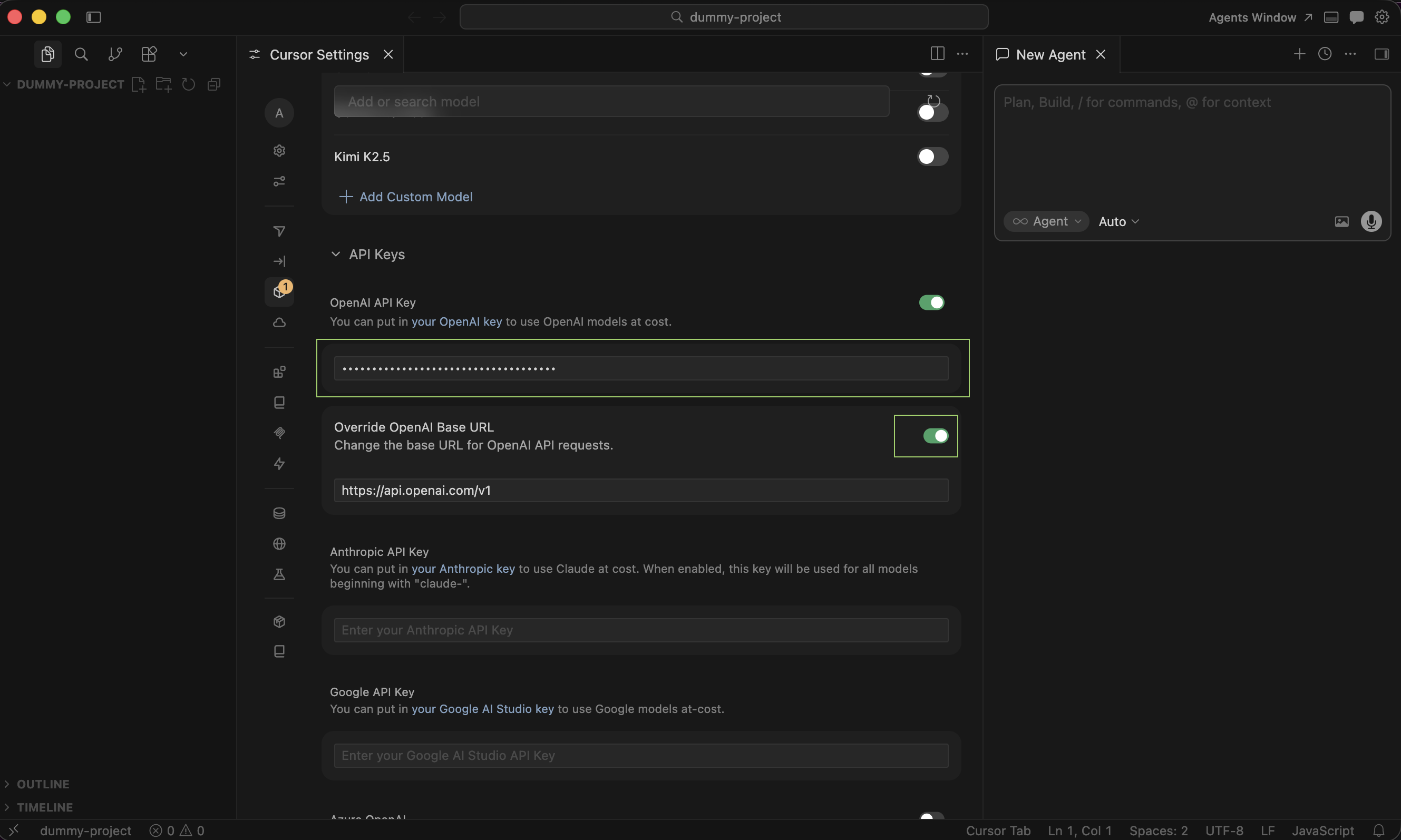
8. Set the OpenAI base URL
Section titled “8. Set the OpenAI base URL”Set OpenAI Base URL to your CompactifAI API root, for example:
- CompactifAI Base URL:
https://api.compactif.ai/v1
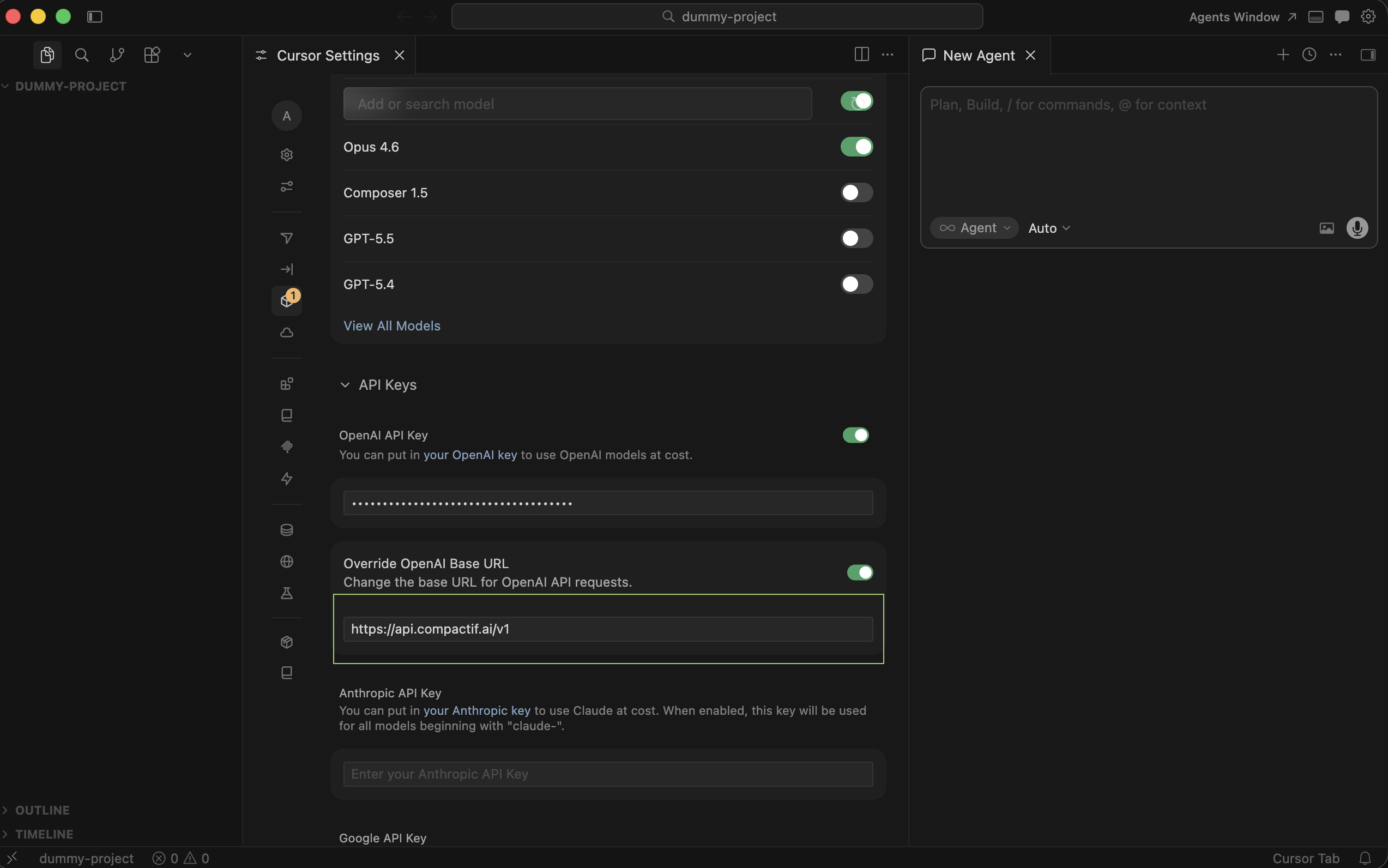
9. Add Custom Model
Section titled “9. Add Custom Model”Click Add Custom Model so Cursor knows which model id to send to the chat completions API.
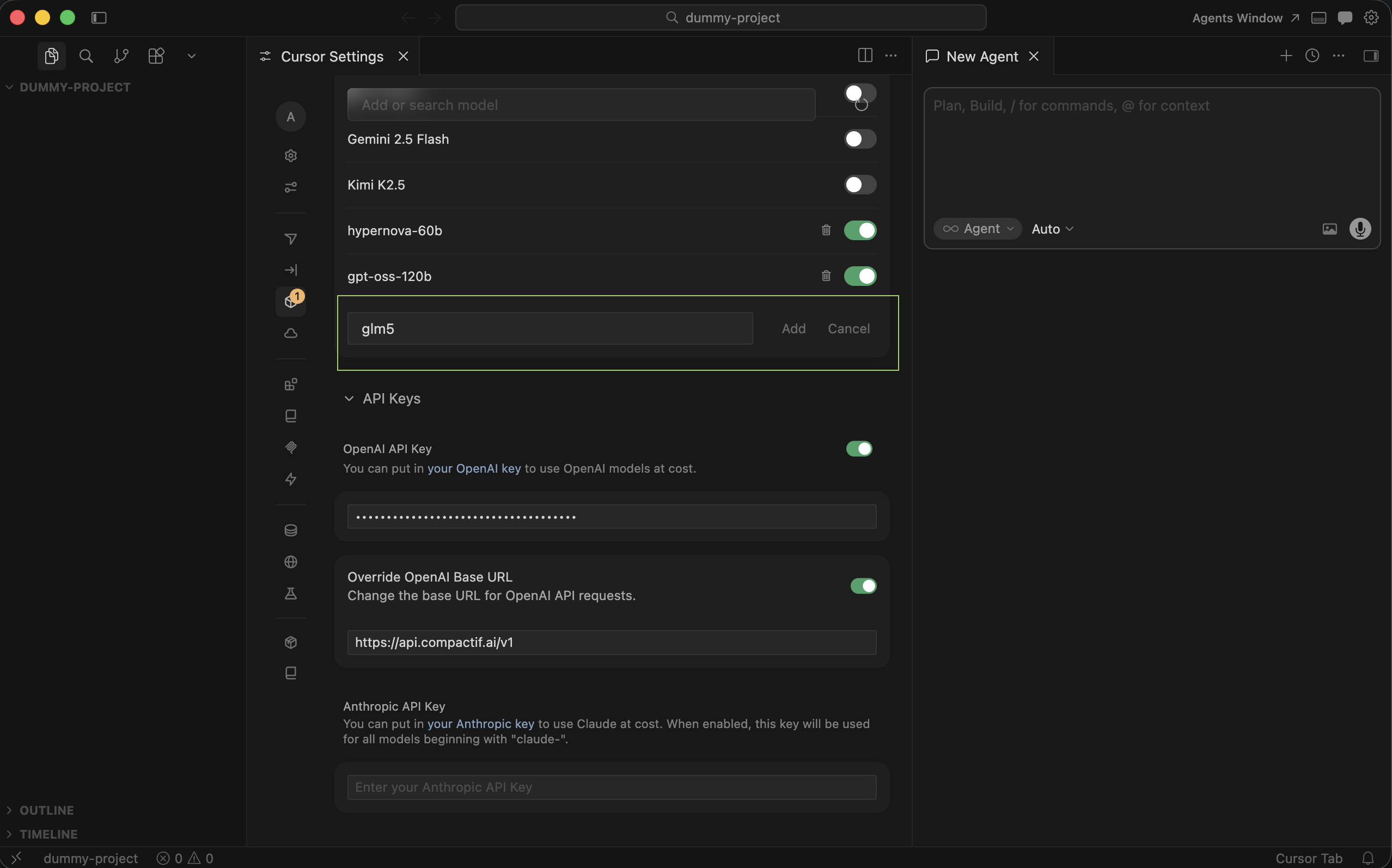
10. Enter your model id
Section titled “10. Enter your model id”Add the model you have access to—for example carina-60b, glm-5-2, or carina-60b. ID must match the API model identifier from the models catalog.
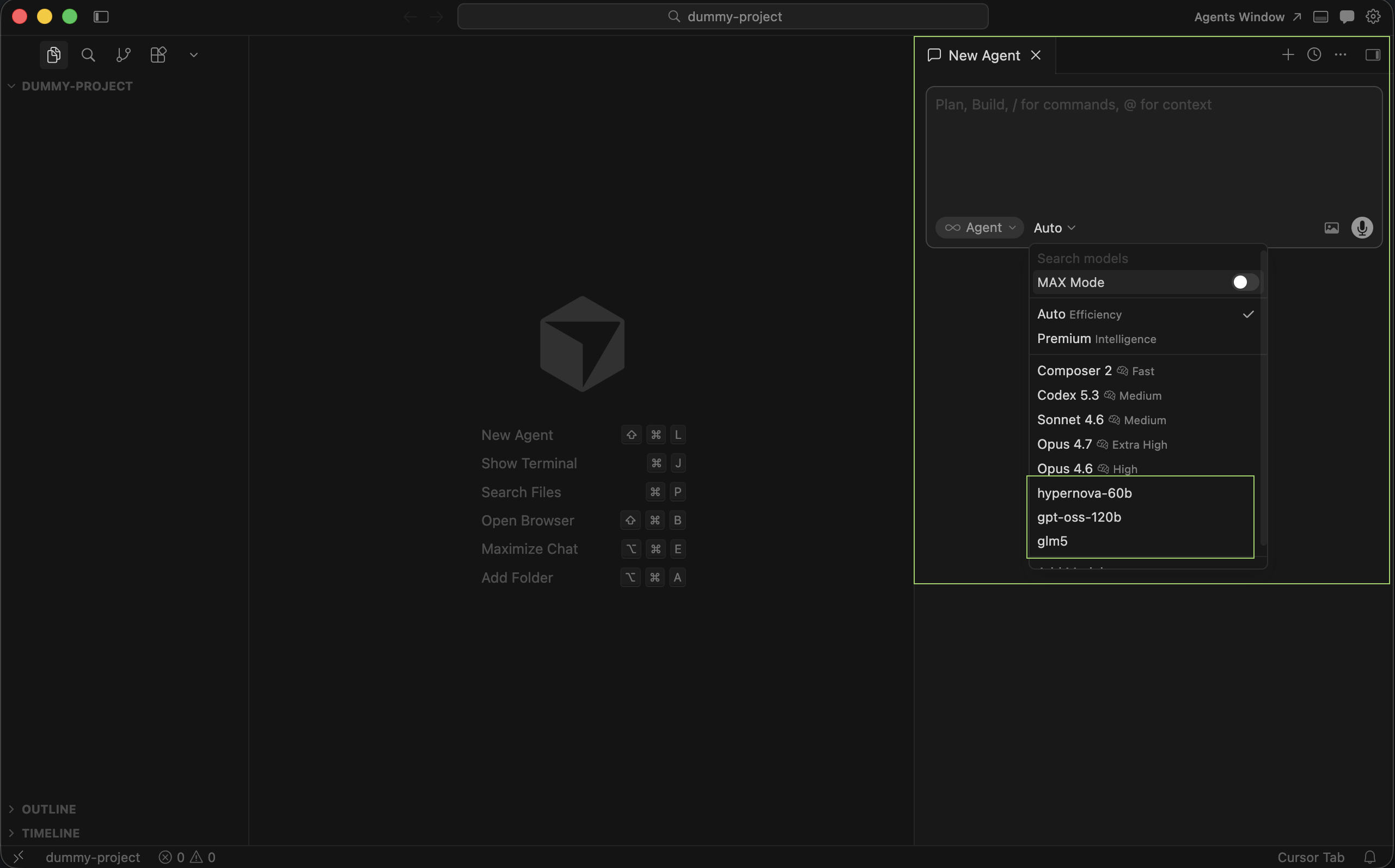
11. Pick CompactifAI in the model list
Section titled “11. Pick CompactifAI in the model list”Close settings. Under Auto, you should see your CompactifAI models. You can leave Auto on or turn it off and select a CompactifAI model explicitly.
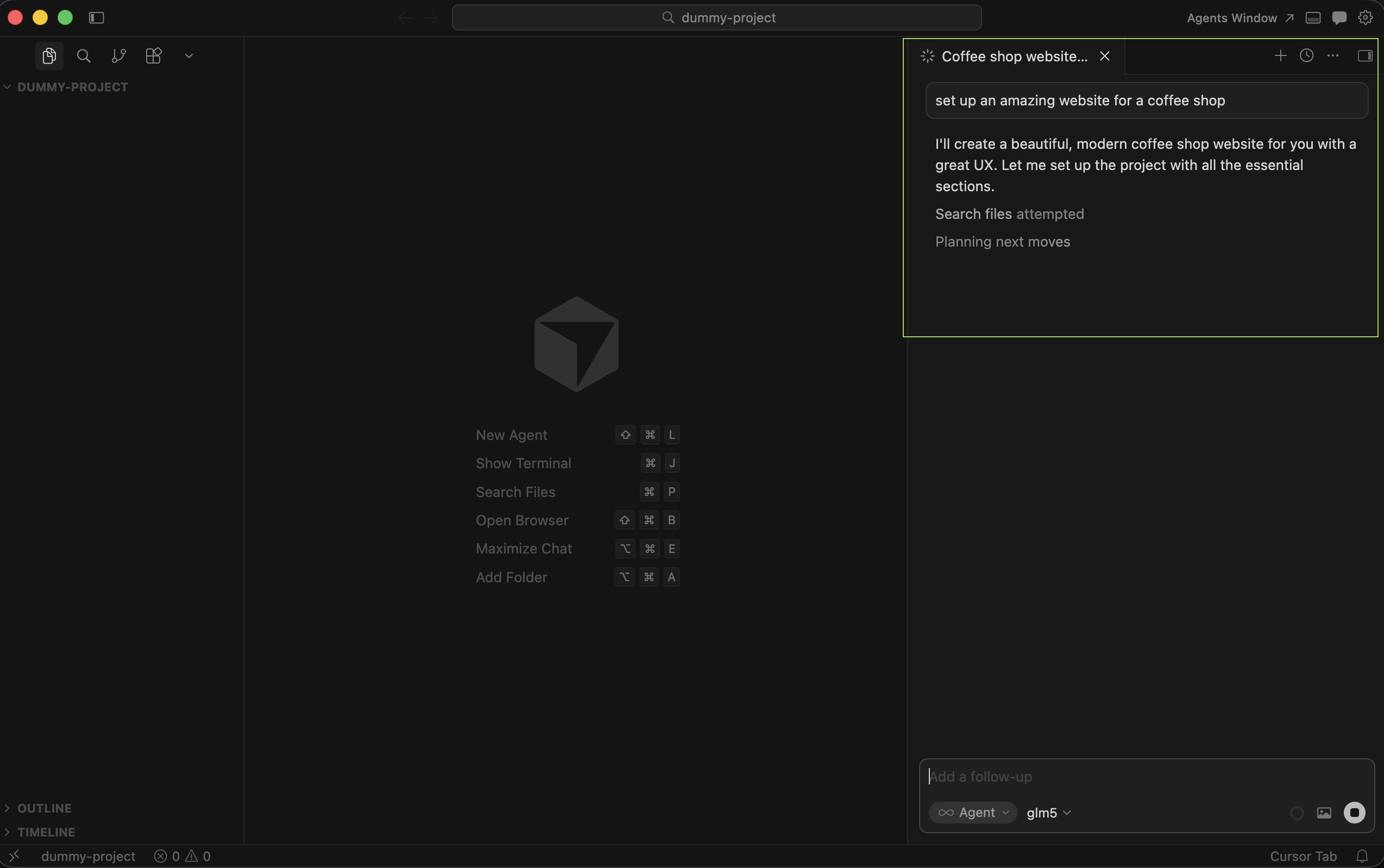
12. Confirm chat works
Section titled “12. Confirm chat works”Start a chat using your configured model; completions should stream from CompactifAI through the same /v1/chat/completions flow described in Chat Completion.
For request and response fields, see Chat Completion and the API reference.