OpenCode
OpenCode can call CompactifAI through the same OpenAI-compatible chat completions API you use elsewhere: register a custom provider with our base URL and API key, then map each model id and display name for the models your account can use.
You need a CompactifAI API key and the correct model id for each model (for example carina-60b or glm-5-2). Use CompactifAI API https://api.compactif.ai/v1 unless you are explicitly targeting another environment.
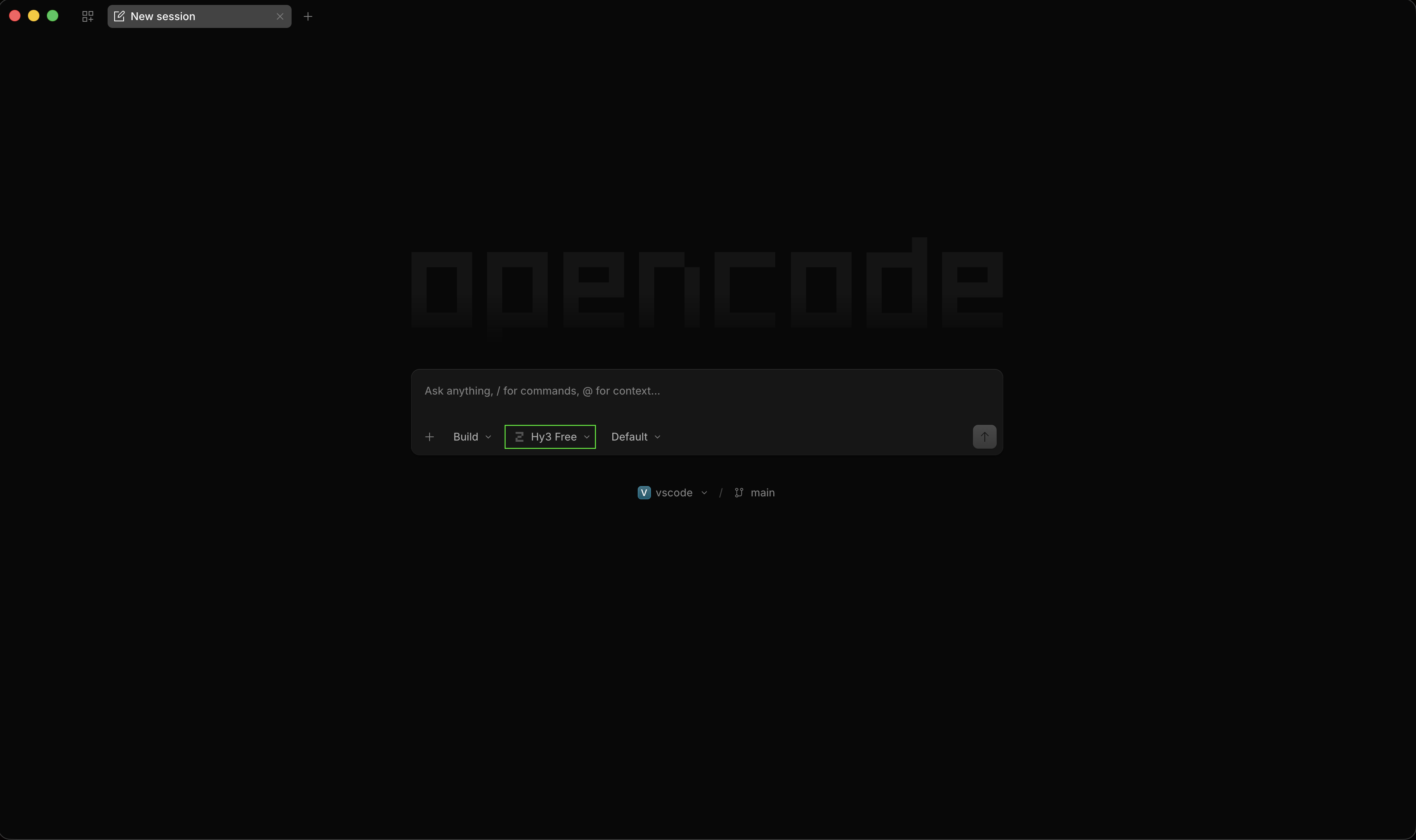
1. Open the model picker
Section titled “1. Open the model picker”Click the model button in the bottom toolbar (it shows the currently selected model, such as a default OpenCode Zen model).
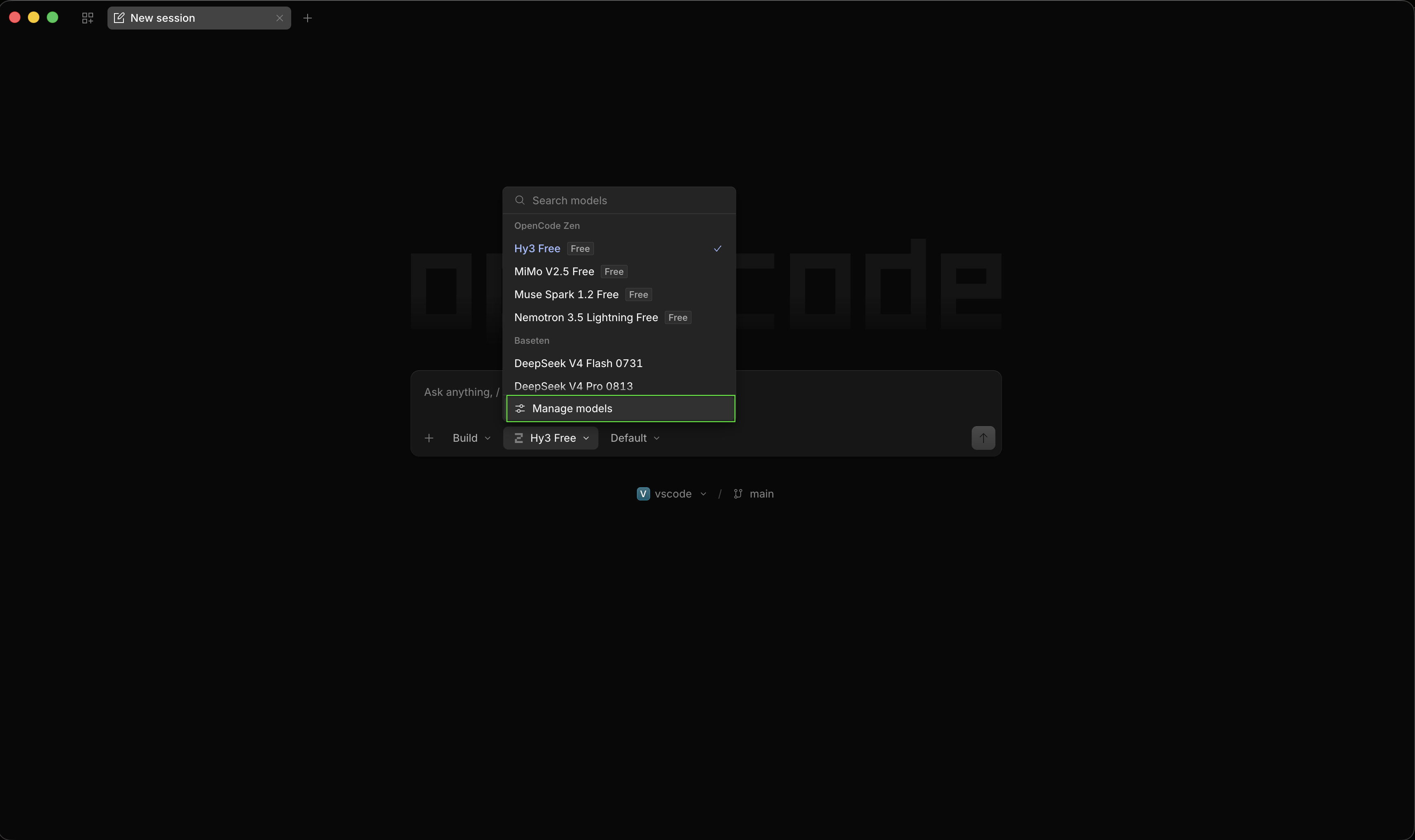
2. Manage models
Section titled “2. Manage models”In the model menu, open Manage models (settings / sliders icon next to the search field).
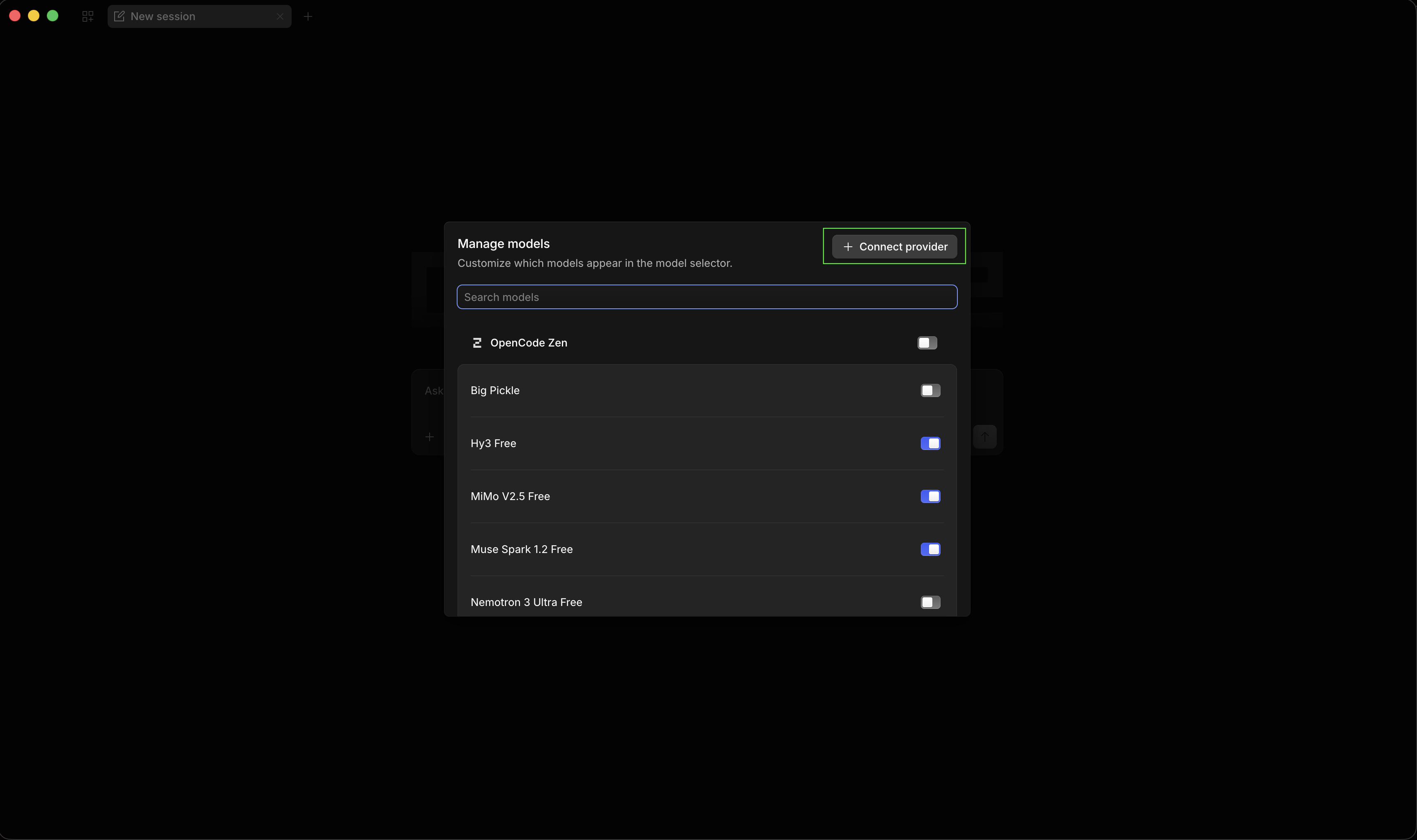
3. Connect provider
Section titled “3. Connect provider”In the Manage models window, click + Connect provider.
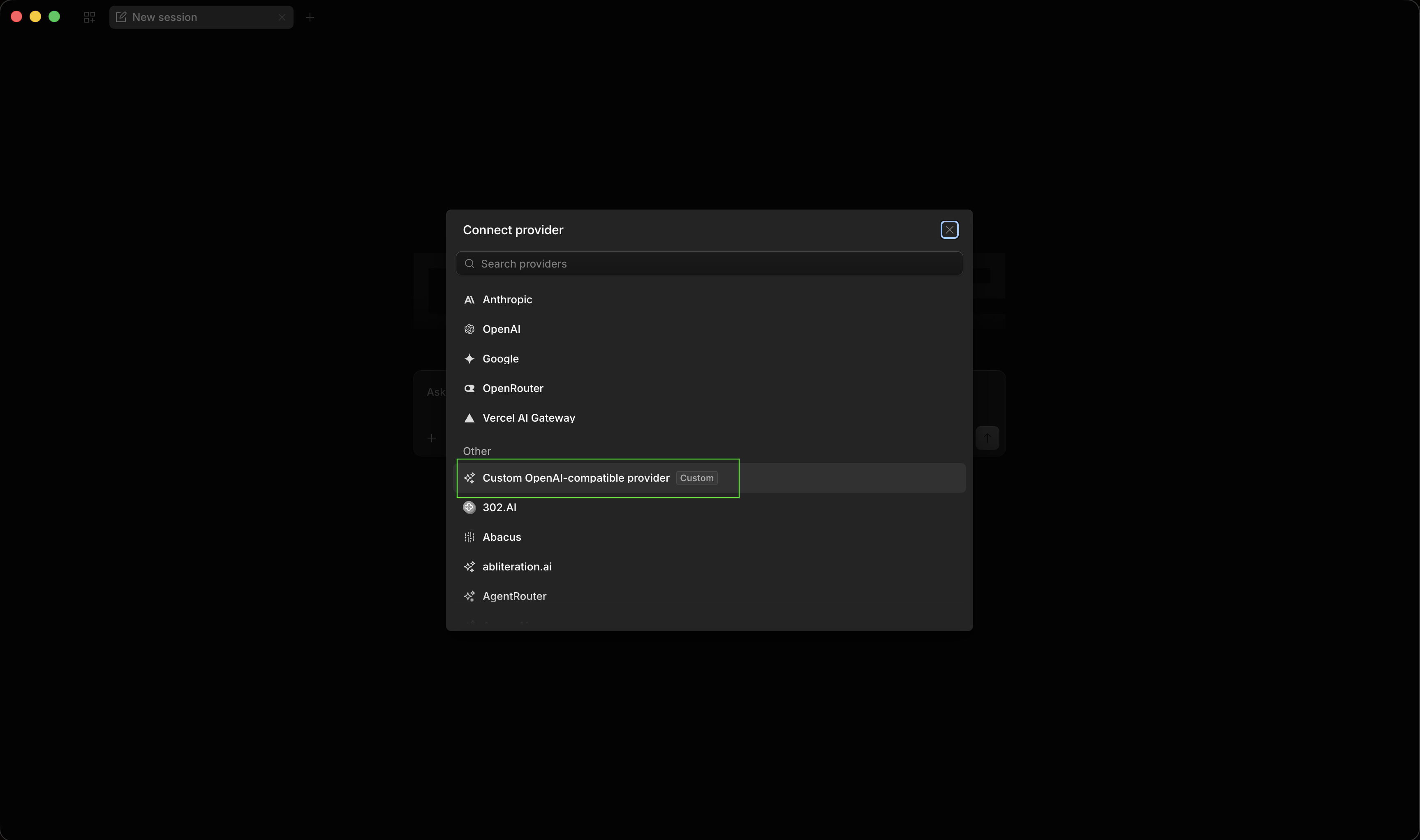
4. Choose Custom
Section titled “4. Choose Custom”In Connect provider, open the Custom entry (under Other) to add an OpenAI-compatible endpoint.
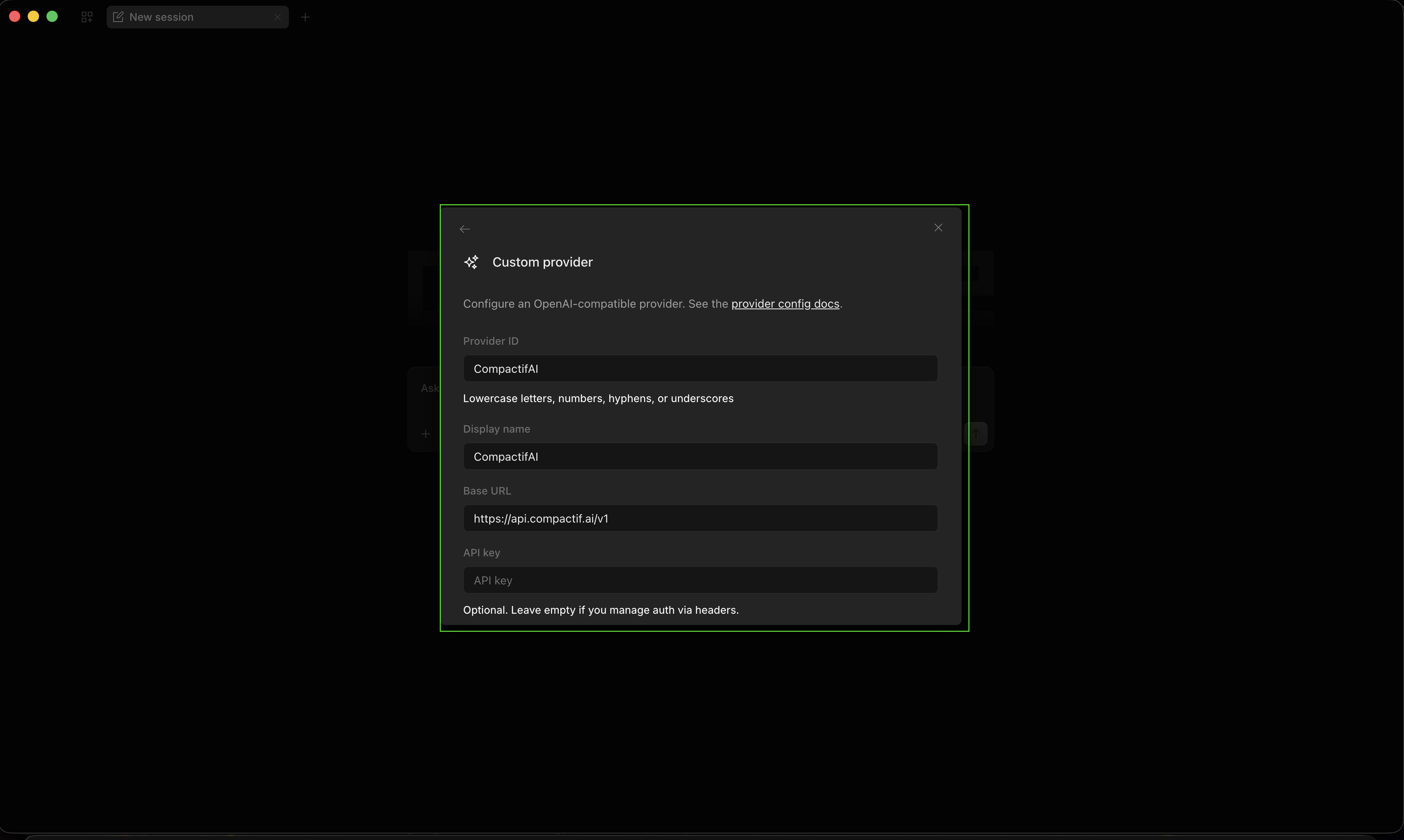
5. Configure the custom provider
Section titled “5. Configure the custom provider”In the Custom provider form, fill in:
| Field | Value |
|---|---|
| Provider ID | cai (lowercase letters, numbers, hyphens, or underscores) |
| Display name | CompactifAI |
| Base URL | https://api.compactif.ai/v1 |
| API key | Your CompactifAI API key |
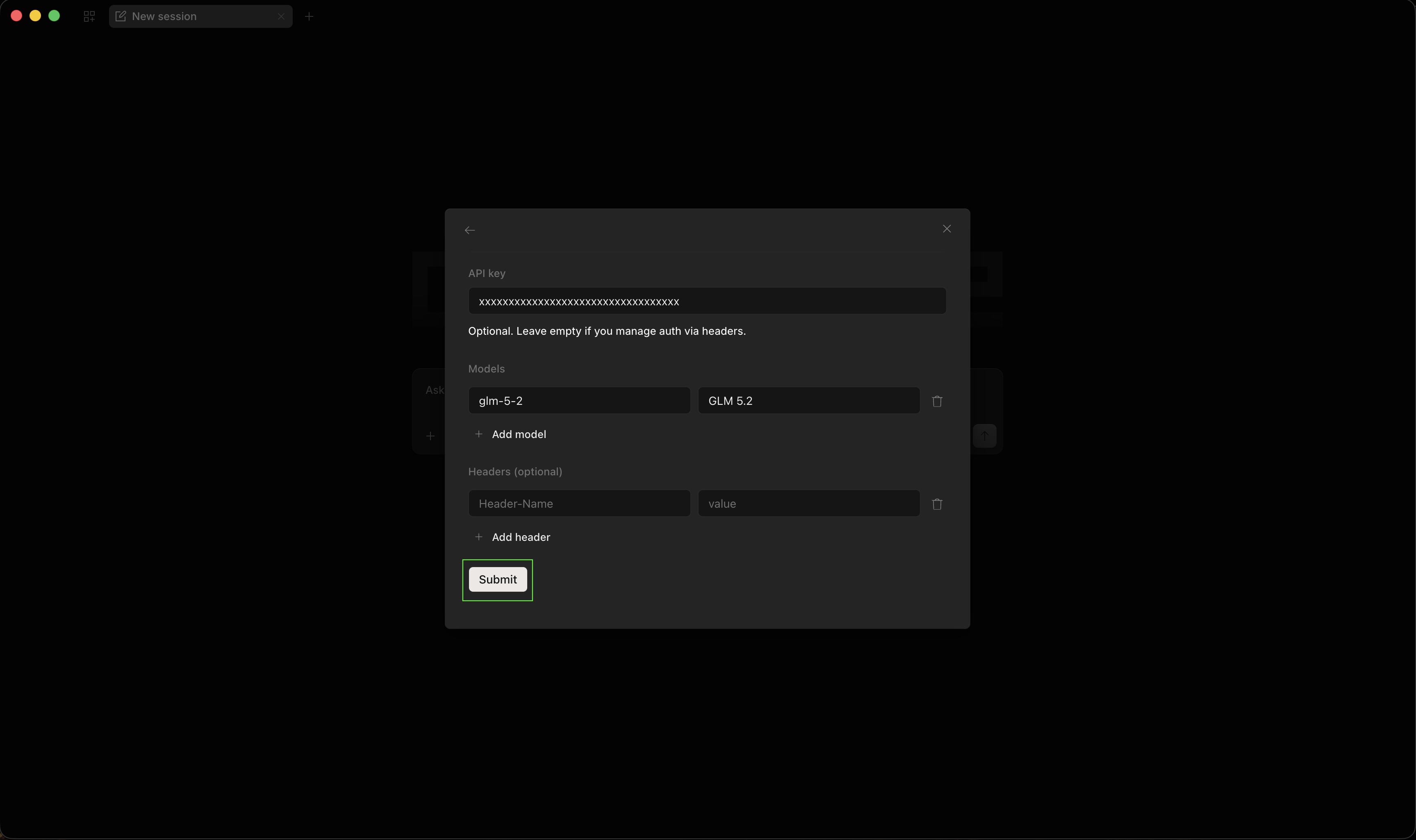
Under Models, add each model your workspace should expose—for example:
- ID:
carina-60b(or another catalog ID such asglm-5-2) - Name:
Carina 60B
Use + Add model for additional CompactifAI models; ID must match the API model identifier from the models catalog.
6. Submit
Section titled “6. Submit”Click Submit to save the provider.
7. Restart OpenCode
Section titled “7. Restart OpenCode”Fully quit OpenCode and start it again. Then open the model control so you can pick from providers as before.
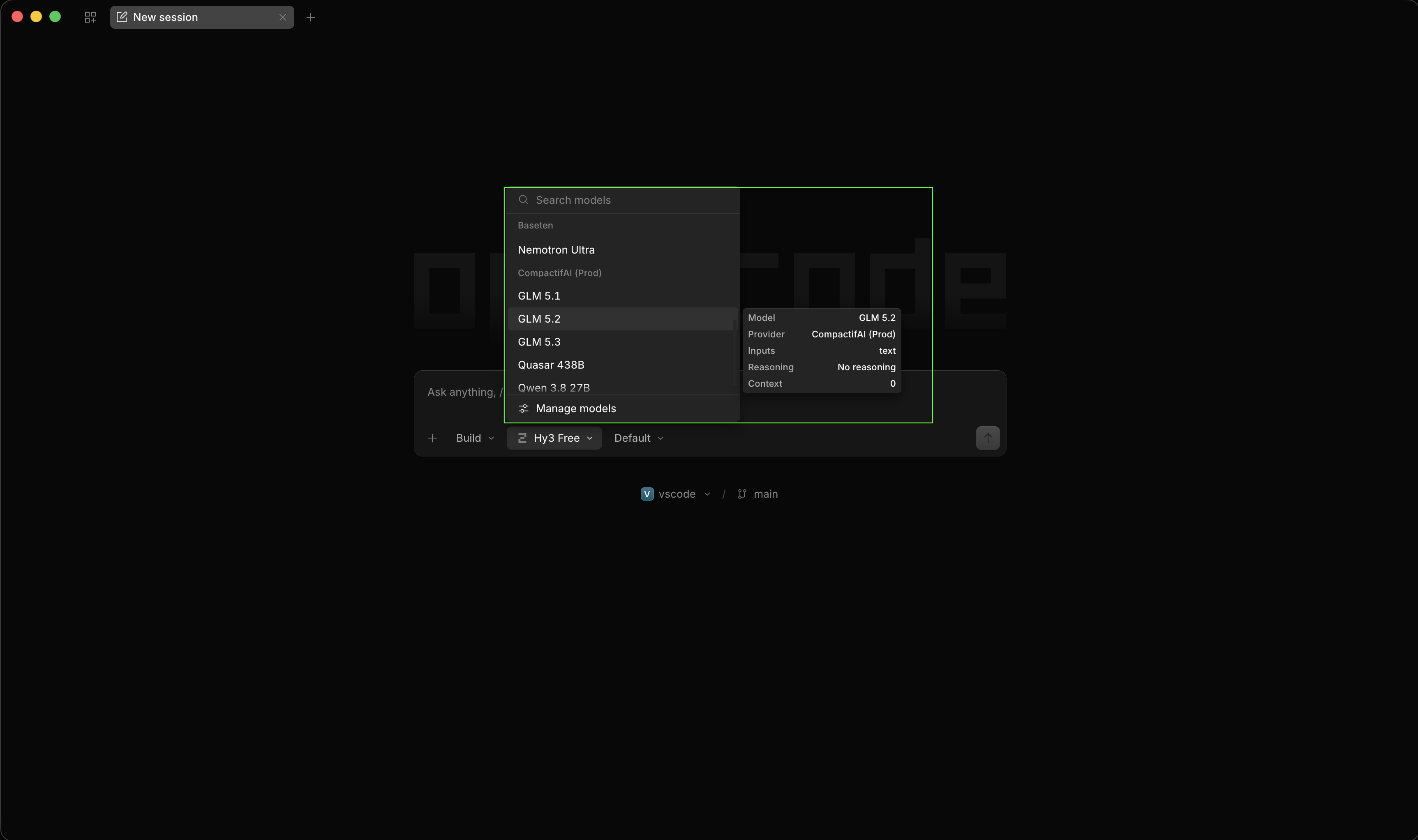
8. Select CompactifAI models
Section titled “8. Select CompactifAI models”Scroll in the model list until you see the CompactifAI section with the models you configured.
9. Pick a model and chat
Section titled “9. Pick a model and chat”Choose a CompactifAI model from the list and start your session. Requests use the same /v1/chat/completions flow described in Chat Completion.
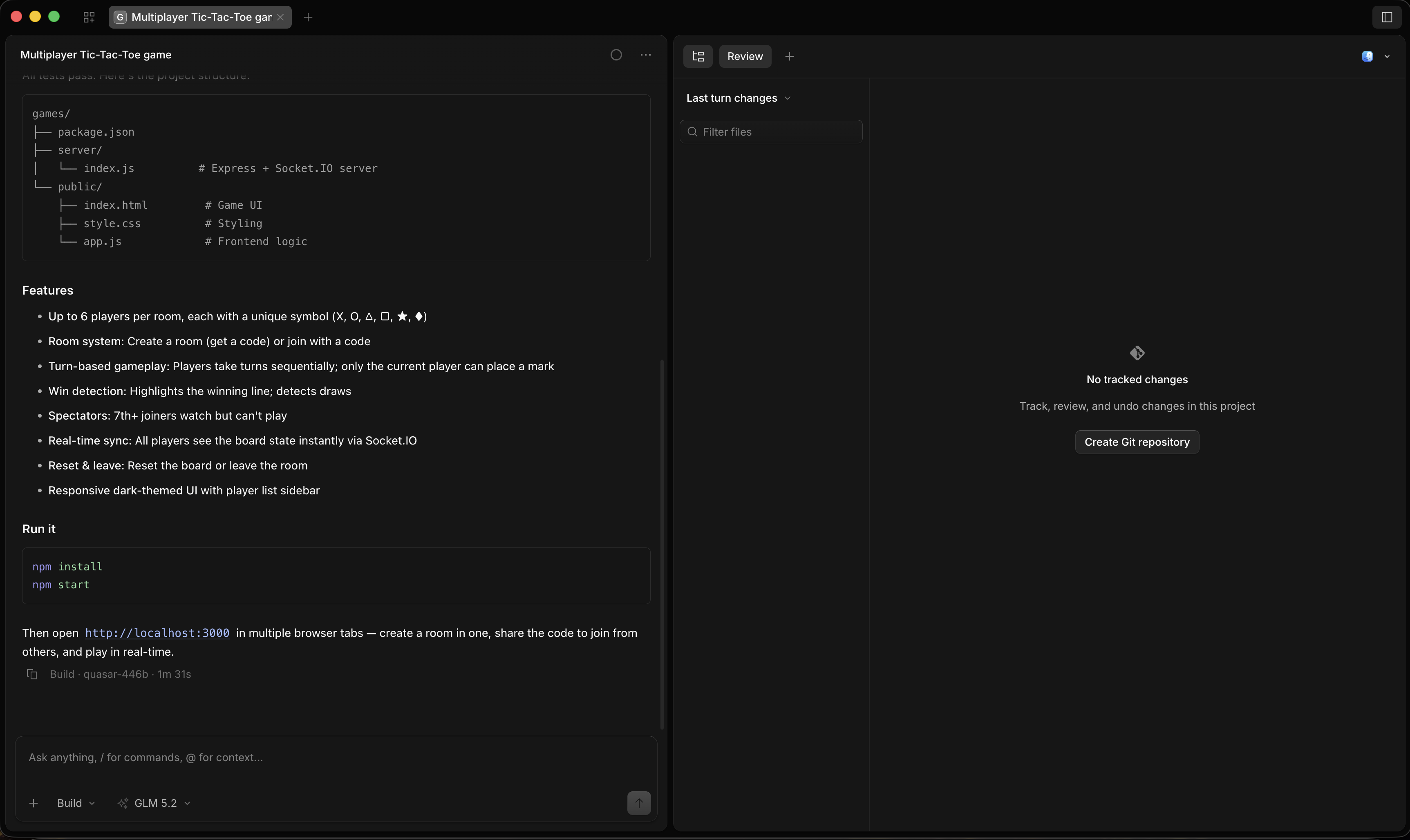
Image input (vision models)
Section titled “Image input (vision models)”To enable image input for a vision-capable model (for example qwen-3-8-27b), add attachment: true and modalities.input to the model entry in your opencode.jsonc:
{ "$schema": "https://opencode.ai/config.json", "provider": { "cai": { "name": "CompactifAI", "npm": "@ai-sdk/openai-compatible", "options": { "baseURL": "https://api.compactif.ai/v1" }, "models": { "qwen-3-8-27b": { "name": "Qwen 3.8 27B", "attachment": true, "modalities": { "input": ["text", "image"] } } } } }}Restart OpenCode after editing the config. For the list of models that accept image_url content parts, see Multi-Modality.
Happy coding.
For request and response fields, see Chat Completion and the API reference.